Dynamic Gain#
Dynamic Gain allows content creators to create volume automation and transmit it as metadata to control component levels in the renderer of the consumer’s playback device. It can be used to provide different dynamic mixes of components, depending on the playback configuration selected by the consumer.
Gain Sequences#
Use [+ Gain Sequence] to create a new gain sequence. The components are:
Gain Sequence Target: Select the MPEG-H components that are ducked when the gain sequence is activated. Multiple targets can be selected.
Trigger: The component or preset that triggers the gain sequence.
Gain: Name of the “Ducking” automation lane storing the gain automation.
Note
A Preset acting as a Trigger will override any Gain Sequences triggered by Components, even if the Component is part of the Preset.
Note
Only one Gain Sequence for a target component can be active at a time.
Editing Gain Sequences#
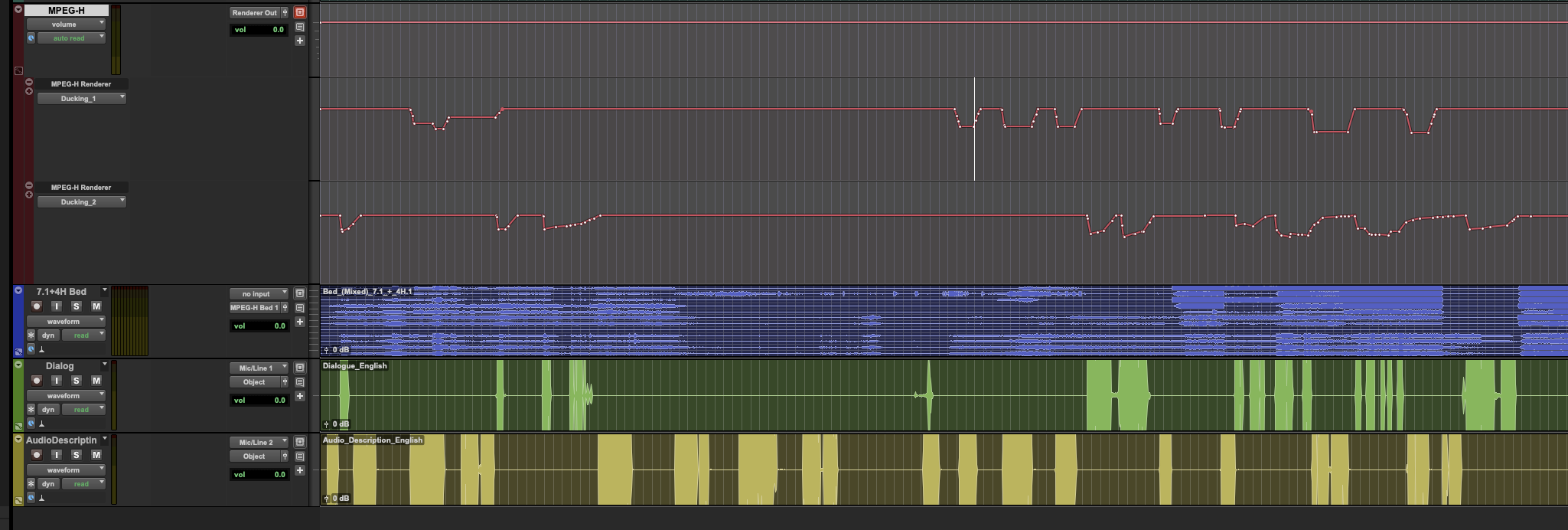
The “Ducking” automation lanes can be accessed via a Master Fader track that is assigned to “Renderer Out”.
See Master Fader.
Adaptive Background Attenuation (ABA)#
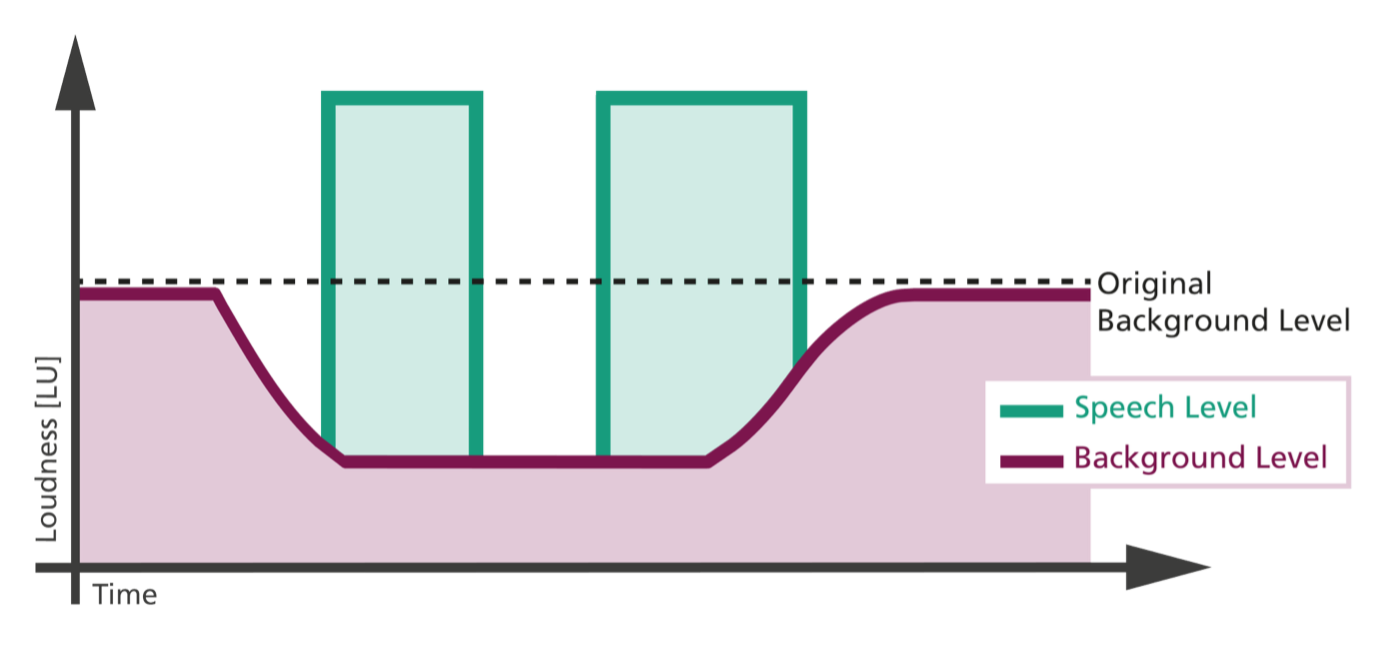
Creating high-quality voiceover mixes usually requires a great deal of manual effort to ensure that the speech and background signals match perfectly. The Adaptive Background Attenuation (ABA) by Fraunhofer IIS solves this issue. The smart mixing algorithm balances speech and other sound elements of a (film)production, which is particularly useful for audio description mixes.
ABA is an intelligent mixing algorithm that automatically creates gain values through comparing foreground and background signals.
Speech is defined as foreground signal; music, effects, and sound design as background.
ABA automatically attenuates the background signal when it would interfere with the foreground signal. Producers can decide by how much for each project.
In sequences without speech, the background remains unchanged.
The artistic intent is largely maintained, as the automated feature is only activated when required.
One of the main goals of the ABA integration into Pro Tools was making it as user-friendly as possible. Producers can simply choose one of the optimized presets (Use Cases):
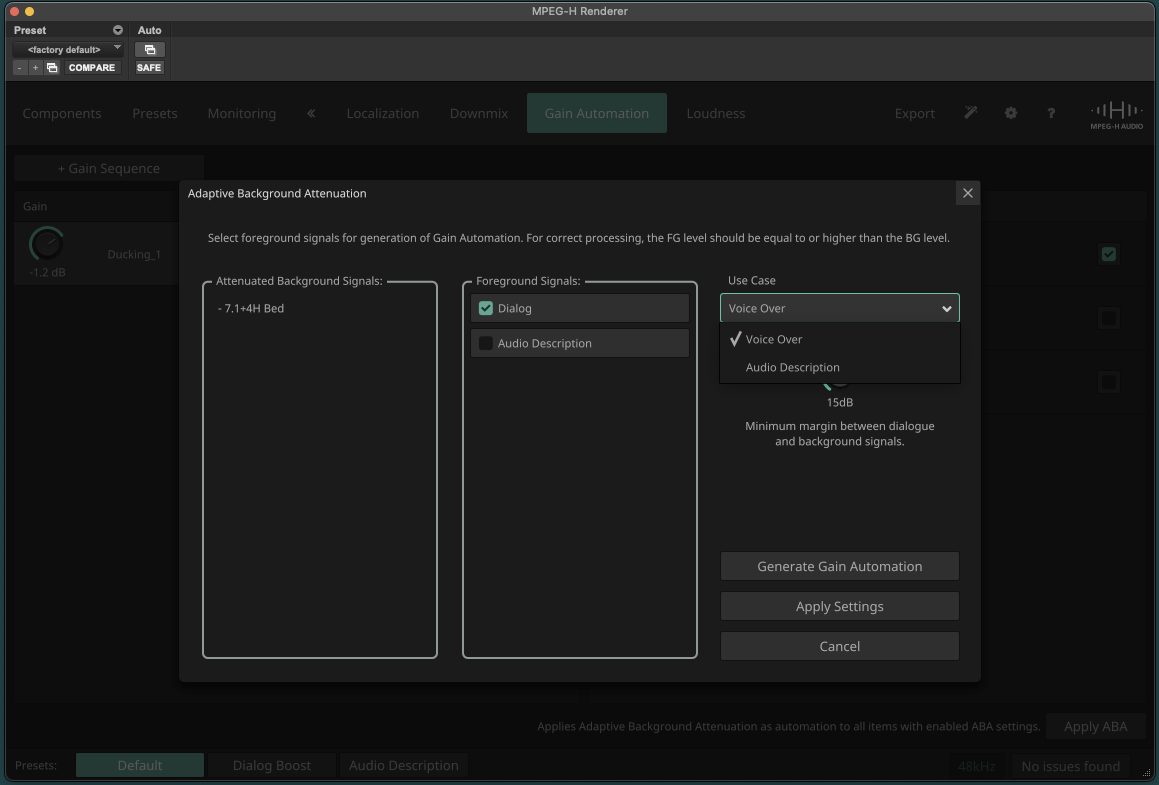
“Voice Over” uses smooth timing to mimic a natural, human-like mixing behaviour.
“Audio Description” uses very short attack and release times to ensure that speakers can make the most of even the shortest pauses.
This is how ABA delivers a precise and natural-sounding voice mix that can be manually adapted if required by editing the created automation lane.
Generating Gain Sequences with ABA#
In the MPEG-H Renderer, navigate to the “Gain Automation” tab.
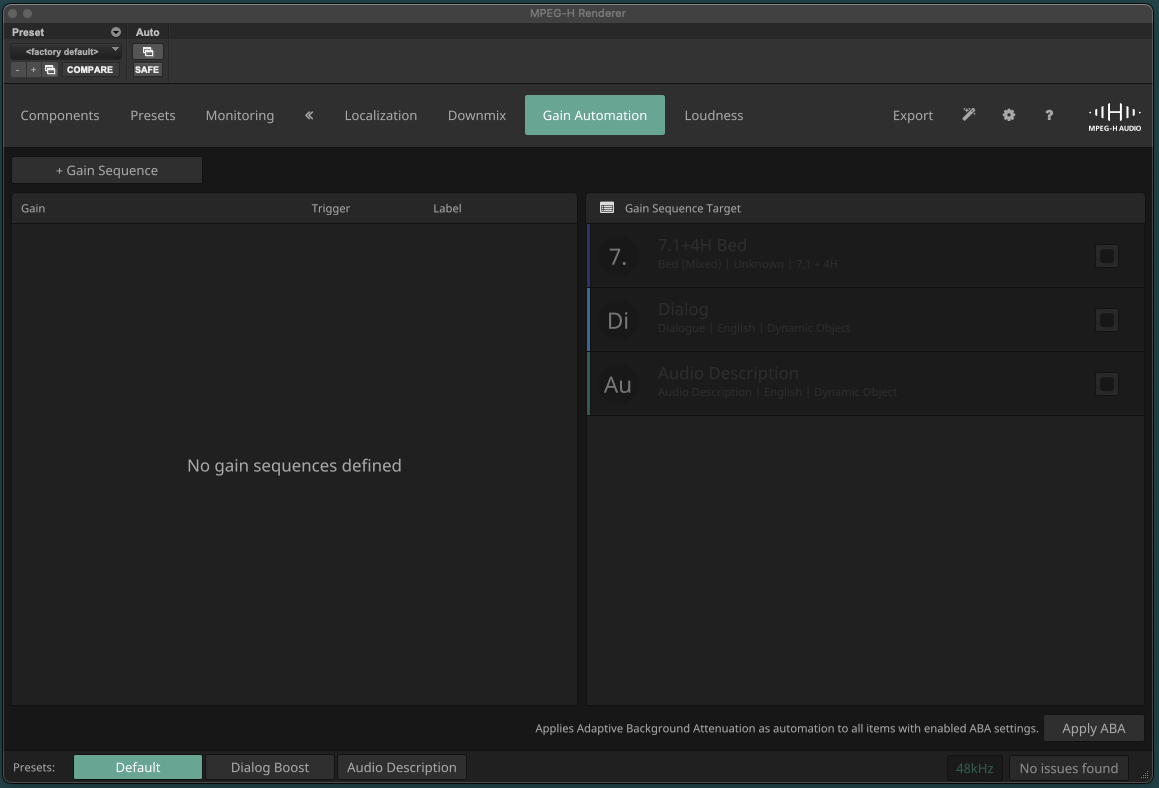
Click the “+ Gain Sequence” button to create a new gain sequence.
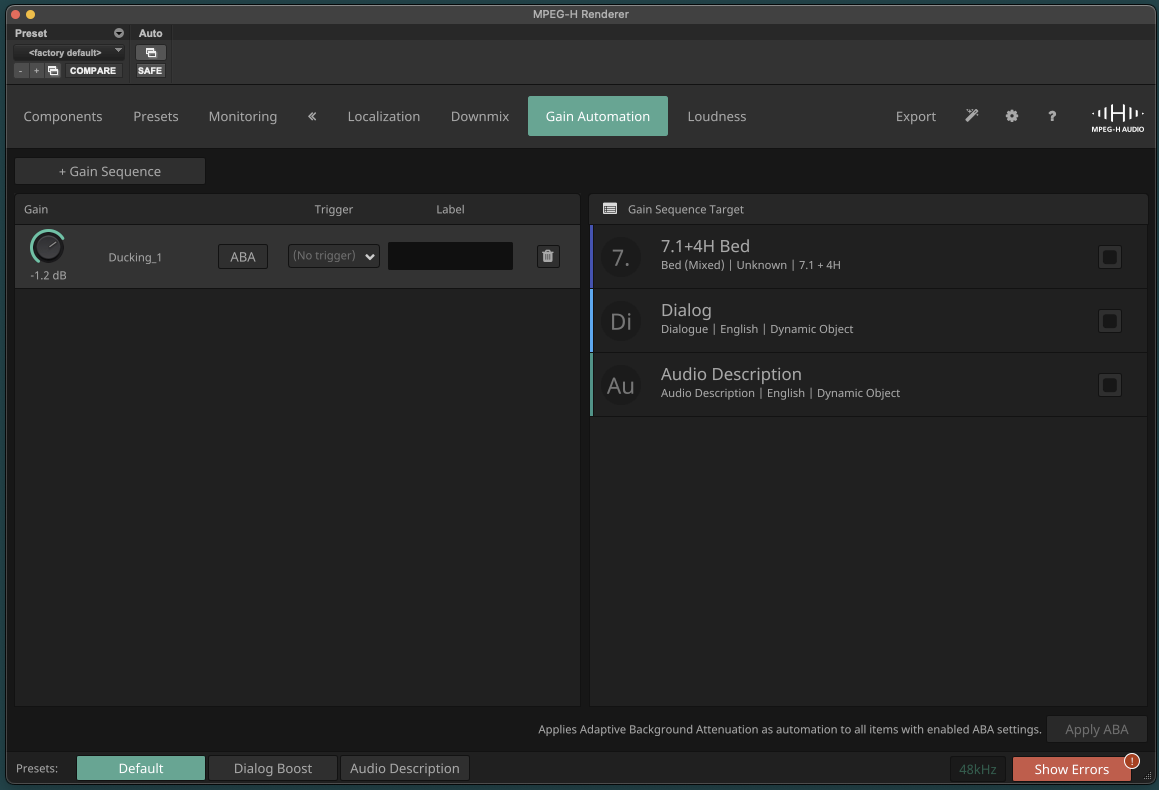
Click the “Trigger” dropdown menu and select your trigger, i.e., the component or preset which serves as the condition for applying this gain sequence.
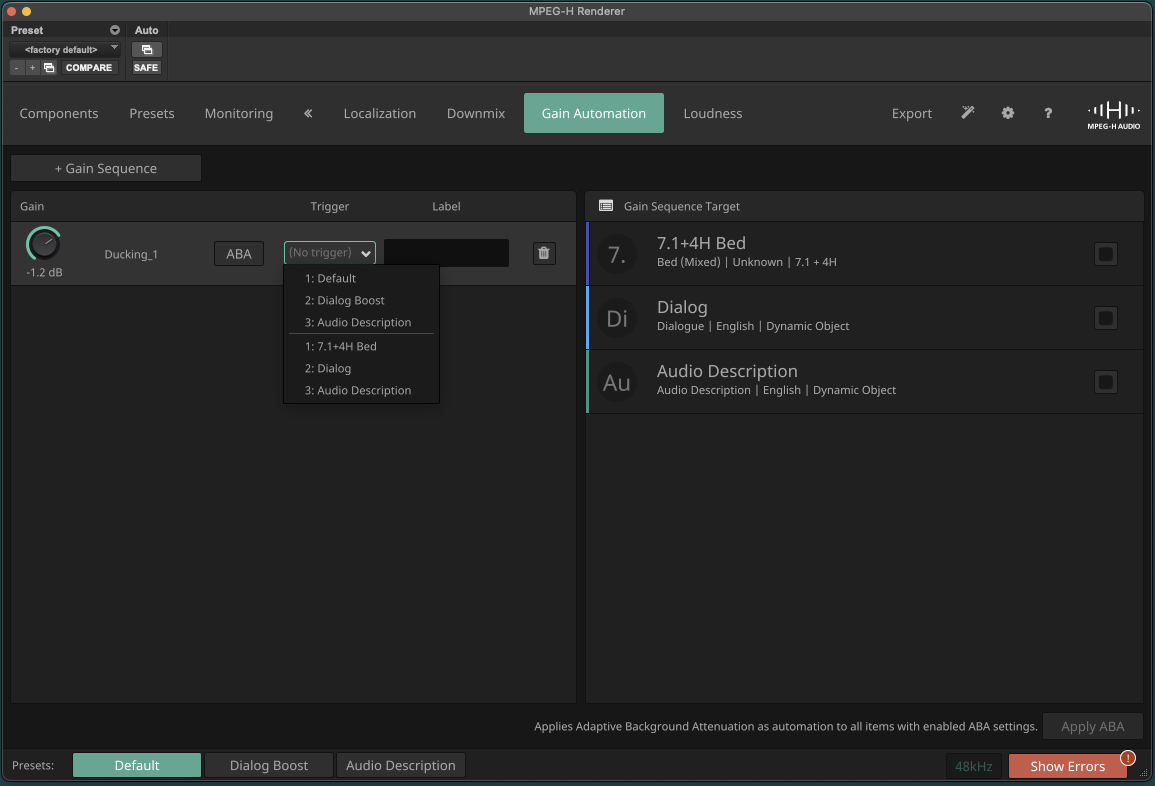
Select your gain sequence target(s) on the right side. The target defines, which components are being attenuated when the trigger is active. Multiple targets can be selected. In this example, the trigger is the Dialog Boost preset and the target is the 7.1+4H Bed.
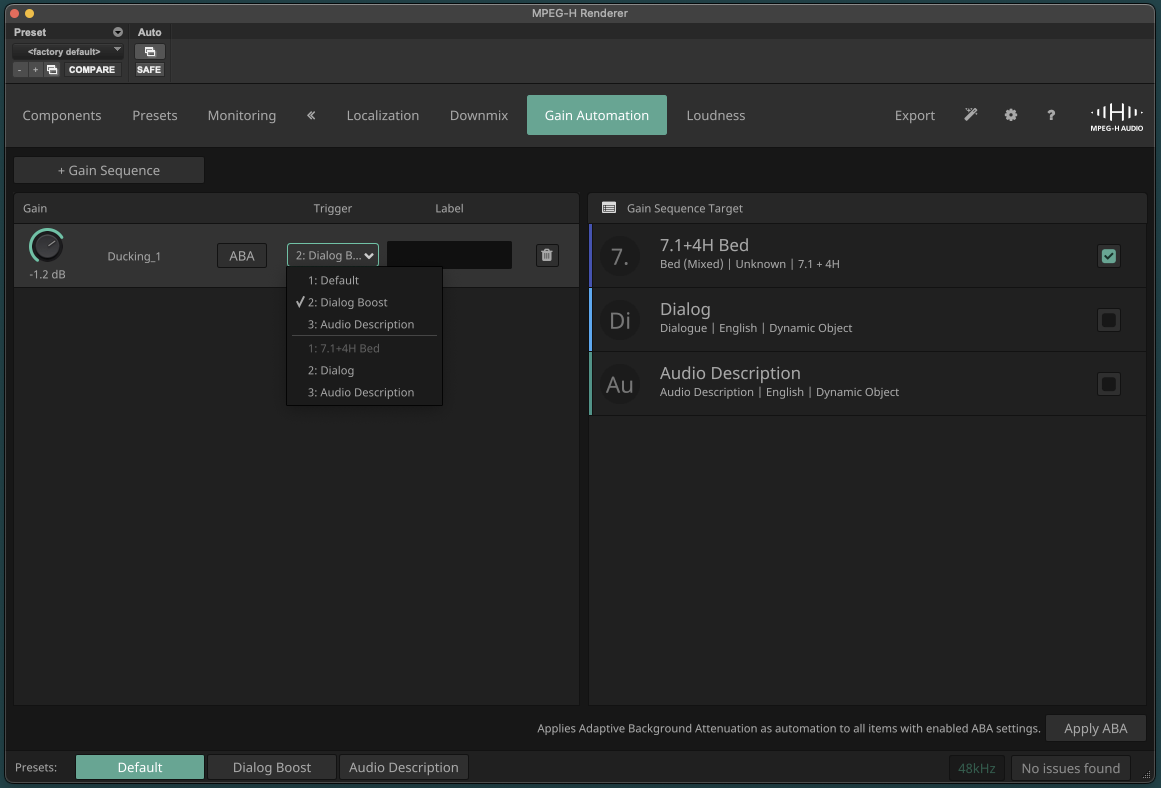
Click the ABA button to open the ABA settings menu. On the left, you can see which components have been selected as background targets. The middle column shows the remaining components that have not been set as targets. Select which foreground signal(s) will be used to calculate the neccessary gain values to achieve the desired margin between foreground and background.
Select either “Voice Over” or “Audio Description”. “Voice Over” uses smooth timing to mimic a natural, human-like mixing behaviour. “Audio Description” uses very short attack and release times to ensure that speakers can make the most of even the shortest pauses.
Below that, the “Clearance” can be set. Clearance is the minimum margin between dialogue and background signals. The higher the clearance value, the stronger the attenuation of the background.
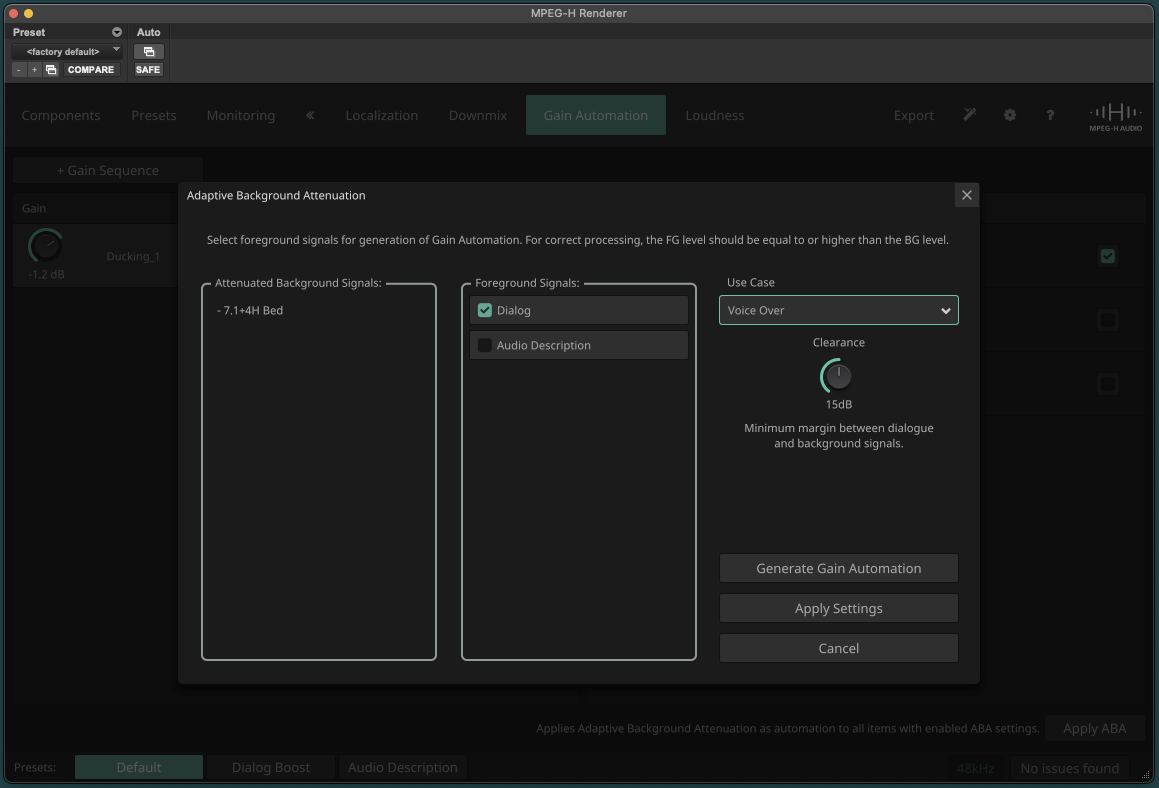
After setting the clearance, click “Generate Gain Automation” to automatically create an automation curve that reduces the background noise with the given clearance whenever there is a signal in the foreground. To create multiple gain sequences, click “Apply Settings” to save the settings of this gain sequence.
If you have created multiple gain sequences and want them generated all at once, click “Apply ABA” in the bottom right corner.
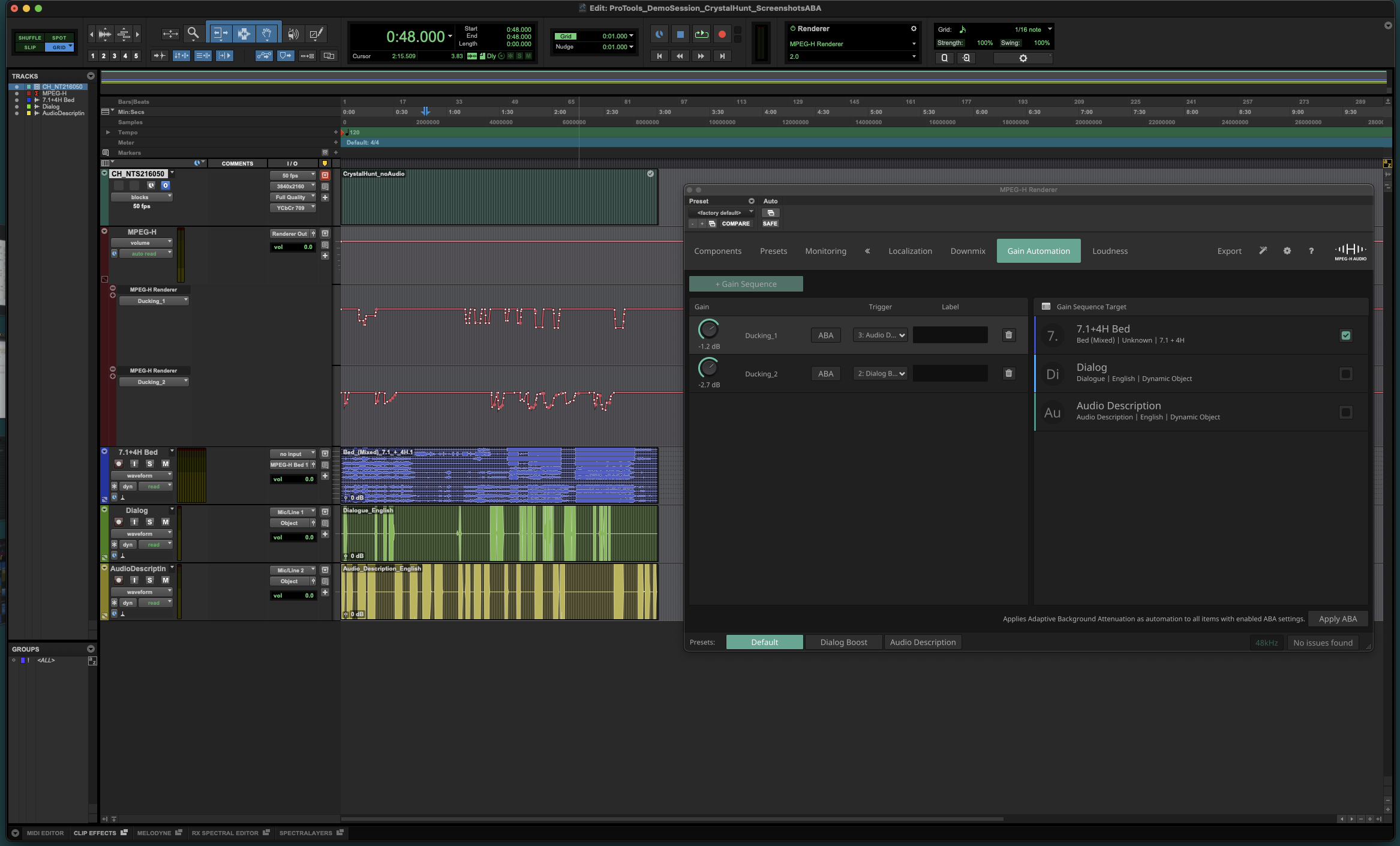
You will find the generated automation data on the automation lanes of the MPEG-H Renderer Master Track labeled “Ducking_1”, “Ducking_2”, and so on. You can now check and manually edit the created gain automation if necessary.