
Import Workflow#
To import an MPEG-H Audio master file:
Make sure the MPEG-H Audio Renderer is enabled.
Choose File - Import - MPEG-H Master.
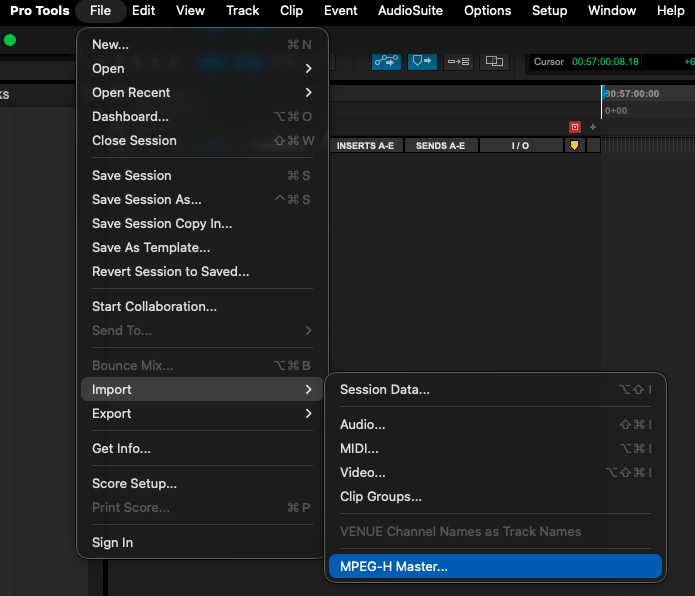
Select the MPEG-H master file to import.
Click Open.
The MPEG-H Renderer window will open.
Configure the import settings.
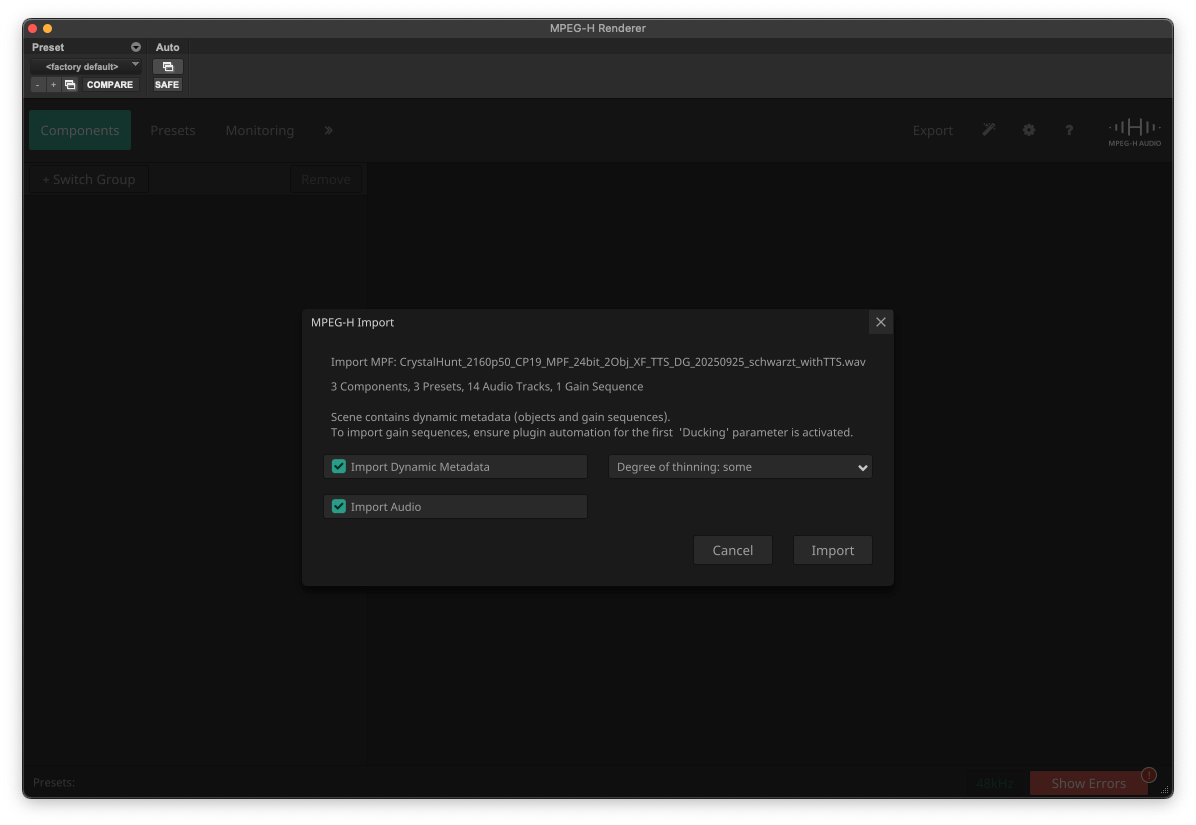
Click Import.
Valid import formats are:
MPEG-H BWF/ADM from a .wav-file
MPEG-H Production Format from a 16/32 channel .wav-file
MPEG-H MXF/S-ADM from a .mxf-file
MPEG-H template from a .xml-file (static metadata only, no audio)
Note
Import can only be used if there are no existing MPEG-H objects or beds in the session.
Import Options#
“Import Audio”: If this option is enabled, the audio essence is extracted from the master files and copied to the sessions’ audio files folder.
“Import Dynamic Metadata”: If this option is enabled, dyanmic metadata (object positions or gain sequences) are imported.
Dyanmic metadata can be simplified on import:
Degree of thinning (most): The curves are strongly reduced.
Degree of thinning (some): The curves are lightly reduced.
Import full metadata: No thinning, for each MPEG-H frame (1024 samples), one data point is written.
Note
When importing gain sequences, make sure the renderer’s “Ducking” parameters are activated.