Presets#
To provide the user with convenient and direct access to appropriate playback configurations, Components, Switch Groups and their respective levels are combined into Presets (also referred to as Programs in ADM terminology). For example, a sports event could be presented using three Presets: “Default” for the standard configuration, “Dialog Boost” for enhanced intelligibility and “Venue” for ambience only. The Preset labels can be chosen freely by the content creator and will appear on the end users’ MPEG-H on-screen display.
Warning
The MPEG-H scene is invalid if a preset is empty. You have to define at least one preset within an MPEG-H scene and assign Components to it.
Adding Presets#
You can create one or more presets by pressing the [+] button above the Preset properties section. Use “Remove Preset” to delete the selected preset.
Note
The MPEG-H scene can contain up to 8 presets.
Defining Presets#
You can add the desired Components from the list on the left-hand side of the UI to the preset by selecting it and clicking the [Add] button in the center column of the authoring tool. Select a preset in the row above the preset properties section to display and edit its properties on the right-hand side.
Properties#
Name: User-facing name of the preset.
Kind: Purpose of the preset. A device may automatically choose a preset based on this value.
Interactivity Settings#
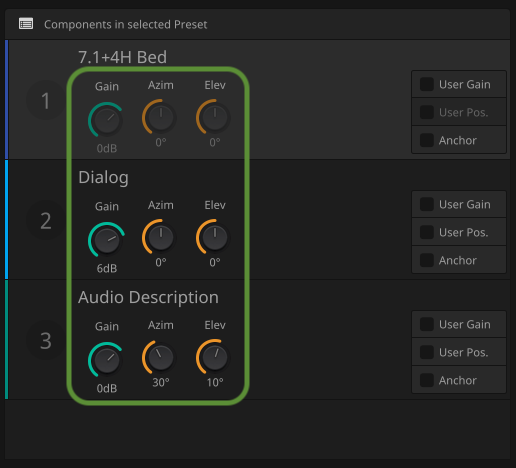
For a component or Switch Group in a preset, the default interactivity start values are defined:
Gain: This adds a static gain offset in dB to the specific Component within a preset e.g. to create a preset with increased dialog level. The audio file itself always stays untouched. The playback loudness will be adjusted using metadata, as the increased gain changes the overall presets loudness.
Azim./Elev.: Sets a static azimuth or elevation offset.
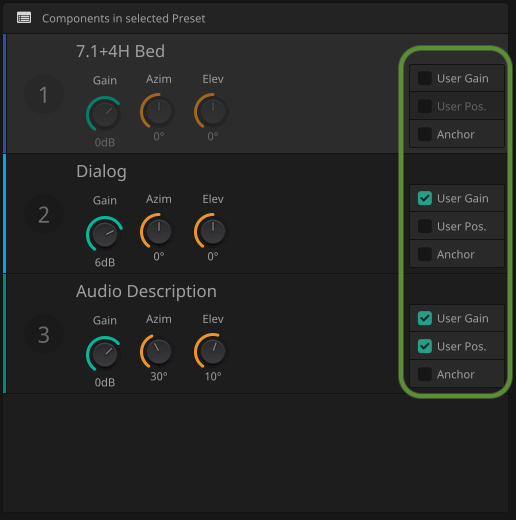
For a component or Switch Group in a preset, the unser interactivity can be enabled:
User Gain: Enable or disable user interactivity on the playback gain of the respective Component, inside the ranges specified in the Components section. The overall loudness of the current audio scene will be preserved, but the prominence of the referred component will be increased or decreased according to consumer adjustments.
User Pos.: Enable or disable the user interactivity on the position of dynamic objects, inside the ranges specified in the Components section.
Anchor: This checkbox defines the respective Components as the only source for the integrated preset loudness measurement. Moreover, it centres the MPEG-H dynamic range compression of all Components around this element’s loudness.